Wireless Casting and Screen Sharing with Interactive Flat Panel Displays: A Complete Guide for Modern Offices


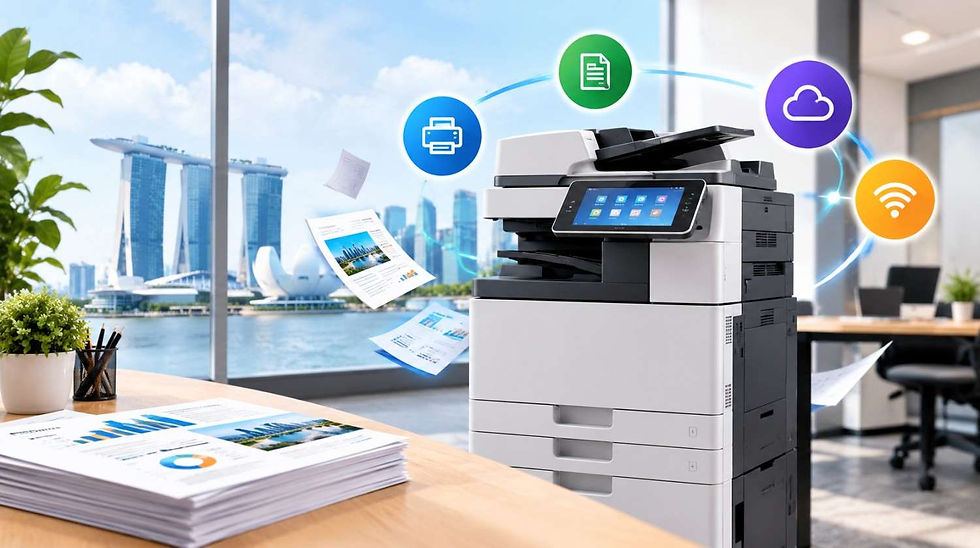
Wireless casting lets users mirror or share content from laptops, smartphones, and tablets to a central screen without cables or dongles. When paired with an interactive flat panel display, this capability transforms how teams present, collaborate, and communicate — making it especially valuable for offices managing hybrid work and mixed device environments.
Why Wireless Screen Sharing Matters in Today's Offices
Walk into most meeting rooms and you will still find a tangle of adapters on the table. Someone needs a USB-C cable, someone else has a Mac, and the IT-issued laptop suddenly cannot find the projector. This is the everyday friction wireless casting is built to eliminate.
In Singapore, the shift to hybrid work has accelerated rapidly. According to the Ministry of Manpower's 2023 Labour Market Survey, more than 40% of employees in Singapore continue to work on flexible or hybrid arrangements. Offices are now routinely hosting a mix of Windows laptops, MacBooks, iPhones, and Android devices in the same meeting room — and every user expects to connect without effort.
How Does Wireless Casting Work with an Interactive Flat Panel Display?
Most modern interactive flat panel displays support one or more of the following wireless casting protocols:
Miracast — Built into Windows 10 and 11, enabling direct peer-to-peer screen mirroring without a Wi-Fi router.
AirPlay — Apple's proprietary protocol for casting from iPhones, iPads, and MacBooks.
Google Cast / Chromecast — Supported by Android devices and Chrome browser on any platform.
WebRTC-based casting — Browser-based screen sharing, device-agnostic and increasingly common in enterprise setups.
The panel acts as the receiver. Once connected to the same network (or via a direct peer connection), users can cast their screen in seconds — no app installs, no cables, no waiting.
Step-by-Step: Setting Up Wireless Casting in Your Meeting Room
Step 1 — Connect the Interactive Panel to Your Office Network
Ensure the display is on a stable Wi-Fi or wired LAN connection. For best performance, a dedicated VLAN for AV equipment is recommended in larger offices. A weak network connection is the most common cause of lag or dropped casts.
Step 2 — Enable the Casting Protocol on the Panel
Navigate to the display's settings and activate the wireless casting service you need — Miracast, AirPlay, or a third-party casting app. Many enterprise-grade panels allow multiple protocols to run simultaneously, so Windows and Apple users can both connect without changing settings.
Step 3 — Cast from Your Device
On Windows: go to Action Centre → Cast → select the panel. On a Mac or iPhone: open Control Centre → Screen Mirroring → select the display name. On Android: use the Cast icon from the quick settings panel. The connection typically takes under five seconds.
Step 4 — Use Touch Interactivity While Casting
This is where an interactive touch display genuinely separates itself from a standard screen. Once your content is mirrored, presenters can annotate directly on the panel — circling figures, highlighting sections of a spreadsheet, or sketching ideas in real time. Annotations can be saved and shared back to the team after the meeting.
Step 5 — Enable Multi-Device Sharing for Collaborative Sessions
Advanced panels support split-screen casting, allowing two or more devices to share the screen simultaneously. This is particularly useful for comparing data sets, running live demos alongside slide decks, or letting remote and in-room participants contribute content side by side.
Key Features to Look for in a Wireless-Ready Interactive Flat Panel Display
Feature | Why It Matters
|
Multi-protocol support (Miracast, AirPlay, Cast) | Covers all device types without requiring extra hardware |
Low-latency casting (<100ms) | Prevents visible lag during live presentations or video content |
Split-screen casting | Allows multiple participants to share content simultaneously |
Built-in Android OS | Enables standalone apps and casting apps without external devices |
4K display resolution | Maintains sharpness when casting high-resolution content |
Touch-over-cast capability | Allows annotation on cast content directly at the screen |
Common Wireless Casting Challenges — and How to Solve Them
Problem: The Cast Keeps Dropping Mid-Presentation
This is almost always a network issue. Ensure both the panel and the casting device are on the same Wi-Fi band (5GHz is preferable for lower interference). If your office network uses client isolation, Miracast's direct peer-to-peer mode can bypass the router entirely.
Problem: The Guest's Device Cannot Find the Display
Visitor or BYOD devices may be on a guest network that cannot see the panel. Setting up a dedicated casting VLAN or using a hardware casting button (a small USB dongle guests plug in to instantly cast) solves this without compromising network security.
Problem: Audio Does Not Come Through After Casting
Check that the output device on the laptop is set to the panel's speakers rather than the local audio. On Windows, this can be set under Sound Settings → Output Device. Most interactive panels with built-in speakers handle this automatically, but it is worth confirming during setup.
Wireless Casting vs. Wired HDMI: Is There Still a Case for Cables?
Wired connections offer slightly lower latency and no dependency on network quality — advantages that matter during high-stakes video production or where network infrastructure is limited. However, for everyday office use, the convenience of wireless casting far outweighs the marginal latency difference.
A practical approach many Singapore offices adopt: keep one HDMI input available as a backup, and let wireless casting be the default. This covers edge cases without compromising the friction-free experience wireless casting delivers.
Getting the Most Out of Wireless Casting in Hybrid Meetings
When part of your team is remote, wireless casting becomes even more powerful. Cast the video call to the interactive panel, then use the touch interface to annotate shared documents in real time. Remote participants see the annotations live through the shared screen. It creates a much more equitable meeting experience than a static slideshow.
Pair this with a good webcam positioned above or below the interactive panel, and remote participants get clear sightlines to the presenter and the annotated content simultaneously. That combination — wireless casting plus interactive annotation — is one of the most impactful upgrades a hybrid office can make.
If you are evaluating display solutions for your office, Exotic offers a range of interactive flat panel displays designed for seamless wireless connectivity across device types — built specifically for the demands of modern, hybrid-ready workplaces in Singapore.
Frequently Asked Questions
Can I cast from any device to an interactive flat panel display?
Yes, most modern interactive flat panel displays support Miracast for Windows, AirPlay for Apple devices, and Google Cast for Android — covering virtually all common office devices. Some panels also support browser-based casting, which works on any device without additional software.
Do I need to install an app to use wireless casting?
Not usually. Miracast and AirPlay are built into their respective operating systems and require no additional app. Some enterprise casting solutions use a lightweight app for added control, but many interactive flat panels support native casting straight out of the box.
How many devices can share the screen simultaneously on an interactive flat panel?
This depends on the panel model, but many enterprise-grade displays support split-screen casting for two to four devices at the same time. This is particularly useful in collaborative sessions where multiple presenters need to display content side by side without interrupting the flow.
Is wireless casting secure enough for corporate environments?
Yes, when configured correctly. Enterprise panels support network segmentation, PIN-protected casting sessions, and encrypted connections. Placing the display on a dedicated VLAN and requiring connection authentication ensures that guest devices cannot access internal network resources during a session.
What is the difference between screen mirroring and wireless casting?
Screen mirroring duplicates your entire display in real time, while casting streams specific content (like a video or presentation) to the panel independently. For meetings, mirroring is more common as it gives full control. Casting is better suited for media playback where the source device can be used for other tasks.
Does wireless casting affect the quality of the content displayed?
On a stable 5GHz Wi-Fi network, wireless casting delivers near-identical quality to a wired connection for presentations and video calls. For 4K video playback, a wired HDMI connection may provide marginally better performance, but for typical office use, wireless quality is more than sufficient.

Comments